 Ultra Cleaner
How to Compress Videos on iPhone
Video is the single biggest storage hog on most iPhones — one minute of 4K/60fps footage is roughly 400 MB. Compressing old videos re-encodes them at a smaller size that still looks great on a phone screen, and it routinely recovers more space than any photo cleanup.
Last updated: July 14, 2026
Why your videos are so huge
Modern iPhones record at 4K by default. That resolution is wonderful for editing footage or watching on a TV — and total overkill for the clip of your dog you'll only ever rewatch on your phone. A 4K clip compressed to 720p keeps the moment and gives you ~80–90% of the space back.
Compress a video with Ultra Cleaner
- Download Ultra Cleaner and open the Compress tab. Your videos are listed largest first.
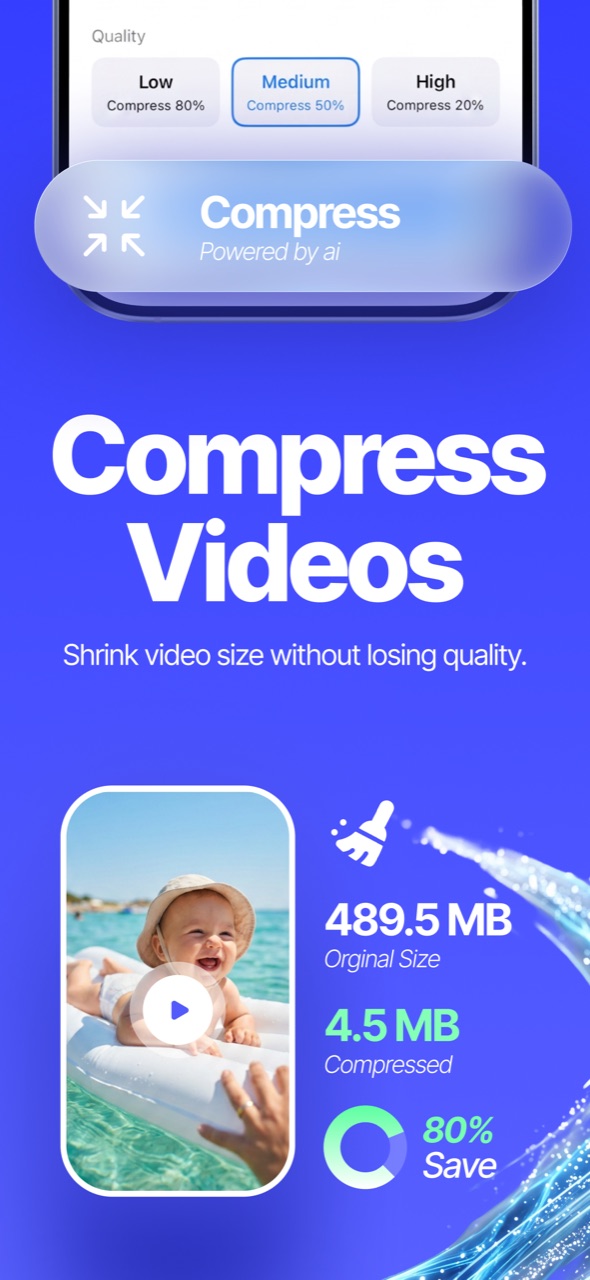
- Pick a video, then choose a preset: Low (smallest file, ~80% saved), Medium (the sweet spot, ~50%), or High (720p, best quality).
- Tap Compress and wait a moment — the app shows the compressed size next to the original (e.g. 489.5 MB → 4.5 MB, 80% saved).
- Happy with it? The compressed copy is saved to your library and you can remove the original. Not happy? Keep the original — nothing is removed automatically.
Stop future videos from being huge
Go to Settings → Camera → Record Video and choose 1080p HD at 30 fps. Your future recordings will be a quarter the size — you can always switch back to 4K for special occasions.
FAQ
Will compression ruin my video quality?
Compression trades resolution/bitrate for size. On a phone screen a Medium-preset video looks nearly identical to the original — the difference shows mainly on large TVs or when cropping in an editor.
Is the original deleted automatically?
No. The original stays until you explicitly choose to remove it after seeing the compressed result.
Does this work on videos taken years ago?
Yes — any video in your photo library can be compressed, and old 4K footage is usually where the biggest savings hide.