 Ultra Cleaner
How to Delete Duplicate Photos on iPhone
To delete duplicate photos on an iPhone you have two options: Apple's built-in duplicate detection (catches exact duplicates only) or a dedicated cleaner that also finds near-identical "similar" photos — the burst shots and retakes that actually take up most of the space.
Last updated: July 14, 2026
Option 1: The built-in Photos duplicates album
- Open Photos and go to Albums.
- Scroll to Utilities → Duplicates.
- Tap Merge on each pair (or Select → Merge All).
The catch: iOS only flags exact or nearly exact duplicates. The eight consecutive shots of the same sunset — each a few degrees apart — don't count as duplicates to iOS, yet they're the real space eaters. And the Duplicates album often takes days to populate after new photos appear.
Option 2: Scan with Ultra Cleaner (catches similar photos too)
- Download Ultra Cleaner and allow photo access.
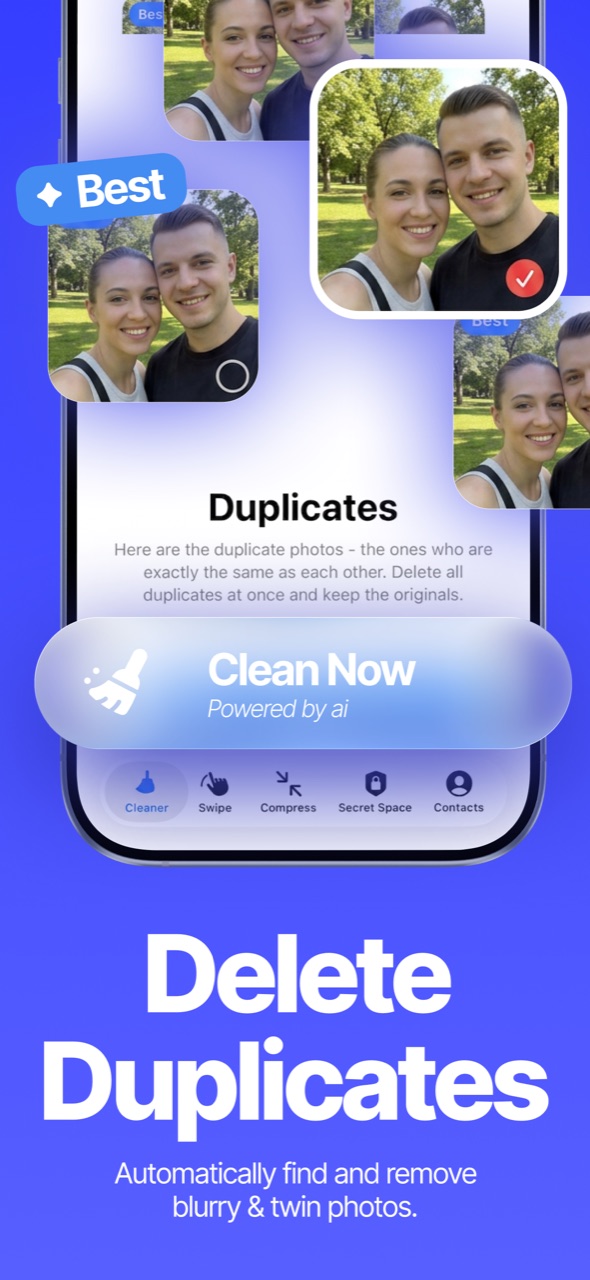
- The Smart AI scan runs automatically — it groups exact duplicates and similar photos (bursts, retakes, near-identical shots) into visual groups.
- In every group, the best copy is auto-marked to keep (highest resolution, largest file) and the rest are pre-selected for deletion.
- Review the groups — tap any photo to change what's kept — then tap Clean.
How much space will I get back?
It depends on your habits, but libraries with years of burst photos routinely free 2–10 GB from duplicates and similars alone. The scan shows the exact reclaimable size before you delete anything.
FAQ
Does deleting a duplicate affect the original?
No. Each group keeps at least one copy — by default the sharpest, highest-resolution one.
Do my photos get uploaded during the scan?
No. The analysis runs entirely on your iPhone; photos never leave your device for scanning.
Does it work with iCloud Photos?
Yes — deleting a photo removes it from your iCloud library too (after the Recently Deleted grace period), which is what frees the space.